
You can add pictures to your posts one of two ways - you can upload the image to ukvac.com or you can link to a picture stored elsewhere on the internet.
If you have an Apple iDevice then due to a WebWiz bug you're better off following the second method of linking to a picture.
Uploading the image to ukvac.com method
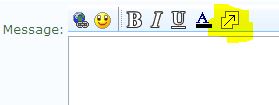
1. Begin composing your reply by switching to the Full Editor. Click the expand arrow above the Quick Reply box to switch to Full Editor.
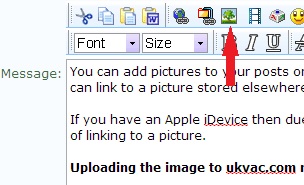
2. Click the Insert Image button
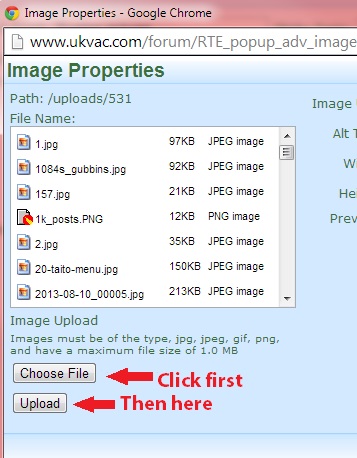
3. Click Choose File and locate your image. Click OK to close the Explorer box, then click Upload.
4. You'll have a preview of the image in the bottom right corner of the Image Properties popup. Click OK to close and your image will be inserted in your post!
Using an image stored elsewhere on the internet method
1. Begin composing your reply by switching to the Full Editor. Click the expand arrow above the Quick Reply box to switch to Full Editor.

2. Click the Insert Image button

3. Paste the URL (the http://example.com/mypic.jpg bit) in the Image URL box as shown below, then click OK.
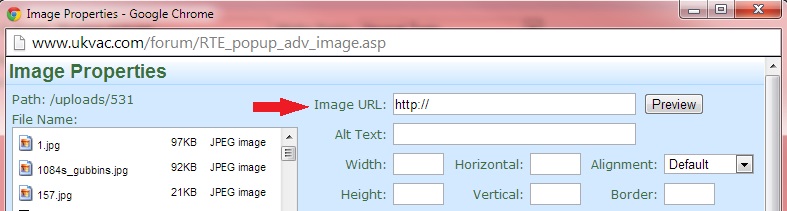
4. Click OK and your picture will be inserted into your post!
If you have an Apple iDevice then due to a WebWiz bug you're better off following the second method of linking to a picture.
Uploading the image to ukvac.com method
1. Begin composing your reply by switching to the Full Editor. Click the expand arrow above the Quick Reply box to switch to Full Editor.
2. Click the Insert Image button
3. Click Choose File and locate your image. Click OK to close the Explorer box, then click Upload.
4. You'll have a preview of the image in the bottom right corner of the Image Properties popup. Click OK to close and your image will be inserted in your post!
Using an image stored elsewhere on the internet method
1. Begin composing your reply by switching to the Full Editor. Click the expand arrow above the Quick Reply box to switch to Full Editor.
2. Click the Insert Image button
3. Paste the URL (the http://example.com/mypic.jpg bit) in the Image URL box as shown below, then click OK.
4. Click OK and your picture will be inserted into your post!