

First off you need to make sure you have all the Hardware & Software to complete the task.
Sega Naomi 1 or 2 Motherboard
Network dim board 3.03 or higher
Latest Naomi Bios for your region
Network Security PIC
Network Crossover Cable
Decrypted Image of the game you want to play
Transfergame.exe program
Setting up the Client (Naomi)
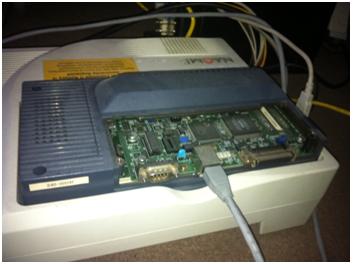
Sega Naomi Net Dimm (i have removed the top metal panel to take pictures)
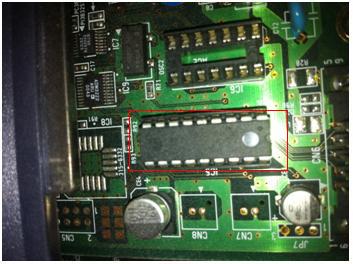
Insert the Network Security chip, make sure it’s the right way round if you’re not using a proper key holder.
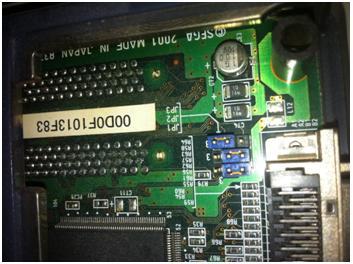
You also need to change some Jumpers as per the image below, these will need to be changed back if you want to use a GD-ROM again.
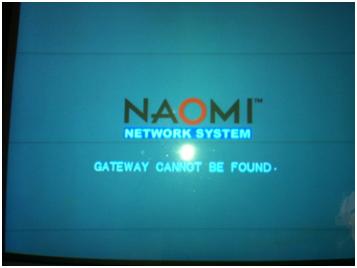
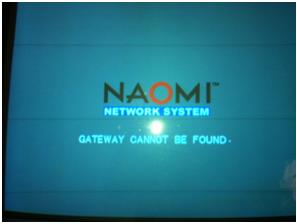
You can now turn the Naomi Cabinet on, you should receive the following message, don’t worry this is normal, you should also notice the logo now says “Naomi Network System†if it doesn't chances are you don’t have the latest Naomi Bios to continue.
Press the Test button on your cabinet service panel or on the Naomi motherboard itself.
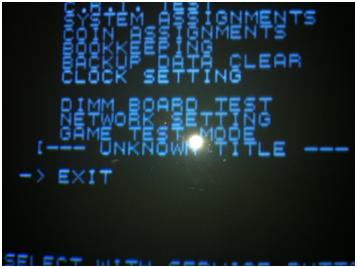
You want to select the Network Setting option as per the picture above, and the Network menu is shown below
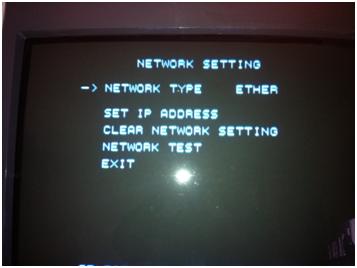
From here you want to change Network Type to “ETHER†and then select set IP address
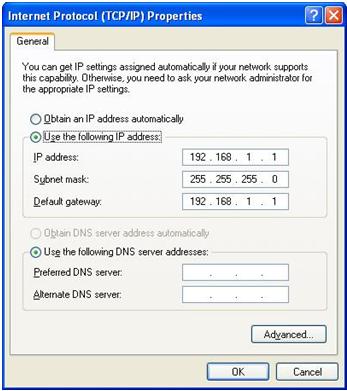
I have used a standard IP address below, you are free to use your own setup but make sure the changes are reflected when setting up the network configuration in Windows.

Basic Windows Network Settings, it won’t matter what you put in Default Gateway.
Important - you must now reboot both the PC/Laptop & Naomi system to ensure the settings become active.
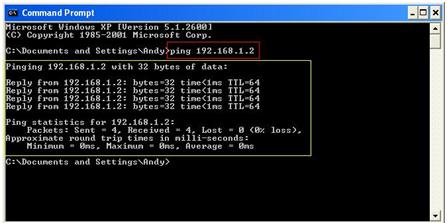
Once your PC/Laptop has rebooted we need to check that it is talking to the Naomi system, open up a command prompt, you want to enter the text from the red box, if everything is working OK you should get a similar response to the data in the yellow box.
You are now ready to transfer a game to your Naomi system while the machine is booted to the following screen.
I have copied the transfergame.exe & my decrypted Sports Jam image to c:Naomi to make things easier.
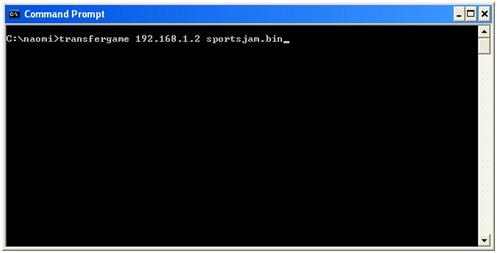
open a Command Prompt again and browse to the c:Naomi directory and type the information in the Red box, if you have changed the IP address above or have the image saved under a different name then make sure to change these here using the following syntax:
Transfergame <IP of client> <game name>
You should see the Transfer Game program copy the data to the Net Dimm.

Your Naomi system will also reboot and you should see loading Game..
Once the program has transferred successfully the Transfer Game Program should end like this.

Your Naomi System will reboot once more and run the final memory check to confirm it has been copied correctly.

ENJOY
 Setch2013-03-07 13:12:34
Sega Naomi 1 or 2 Motherboard
Network dim board 3.03 or higher
Latest Naomi Bios for your region
Network Security PIC
Network Crossover Cable
Decrypted Image of the game you want to play
Transfergame.exe program
Setting up the Client (Naomi)
Sega Naomi Net Dimm (i have removed the top metal panel to take pictures)
Insert the Network Security chip, make sure it’s the right way round if you’re not using a proper key holder.
You also need to change some Jumpers as per the image below, these will need to be changed back if you want to use a GD-ROM again.
You can now turn the Naomi Cabinet on, you should receive the following message, don’t worry this is normal, you should also notice the logo now says “Naomi Network System†if it doesn't chances are you don’t have the latest Naomi Bios to continue.
Press the Test button on your cabinet service panel or on the Naomi motherboard itself.
You want to select the Network Setting option as per the picture above, and the Network menu is shown below
From here you want to change Network Type to “ETHER†and then select set IP address
I have used a standard IP address below, you are free to use your own setup but make sure the changes are reflected when setting up the network configuration in Windows.
Basic Windows Network Settings, it won’t matter what you put in Default Gateway.
Important - you must now reboot both the PC/Laptop & Naomi system to ensure the settings become active.
Once your PC/Laptop has rebooted we need to check that it is talking to the Naomi system, open up a command prompt, you want to enter the text from the red box, if everything is working OK you should get a similar response to the data in the yellow box.
You are now ready to transfer a game to your Naomi system while the machine is booted to the following screen.
I have copied the transfergame.exe & my decrypted Sports Jam image to c:Naomi to make things easier.
open a Command Prompt again and browse to the c:Naomi directory and type the information in the Red box, if you have changed the IP address above or have the image saved under a different name then make sure to change these here using the following syntax:
Transfergame <IP of client> <game name>
You should see the Transfer Game program copy the data to the Net Dimm.
Your Naomi system will also reboot and you should see loading Game..
Once the program has transferred successfully the Transfer Game Program should end like this.
Your Naomi System will reboot once more and run the final memory check to confirm it has been copied correctly.
ENJOY