I would say
You cannot be configured for
Componant & rgbs at the same time .?
So
Go to settings in the crt emudriver/ vmm vídeo monitor settings .
Look at your settings ..
I think you will see componant selected às your vídeo out setting
This componant is NOT
R G B Even though the colours on the phono inputs
Suggests over wise !
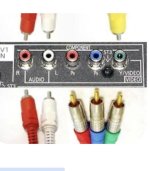
That would need swapping to rgbs..
In the crt emudriver Vmm settings.
Important ! Remeber to regenerate vídeo mode line after changing vídeo settings .
AI says
To swap your CRT Emudriver output from a
Component (YPbPr) video signal to an
RGBS (SCART/BNC) signal, you must change your color space encoding from
YUV to RGB and update your
sync settings.
Because Component and RGBS handle colors and sync signals entirely differently, making these software changes is critical to prevent a garbled, rolling, or monochrome picture.
1. Change VM Maker Sync Settings
CRT Emudriver handles sync combining natively, which is required for most RGBS setups (like VGA-to-SCART cables) that need a single Composite Sync (CSync) line. [
1]
- Open VideoModeMaker (VM Maker).
- Navigate to the Monitor Settings tab.
- Locate the Sync polarity or Composite Sync options.
- Enable Composite Sync (CSync) by checking the box for Enable composite syncor setting sync options to +/- depending on your cable requirements.
- Click Update Drivers to push the new sync configurations to your AMD GPU.
2. Disable Component Transcoding (YUV to RGB)
If you were previously using software transcoding to output a YPbPr component signal directly from your GPU's VGA port, you must revert the driver back to standard RGB output.
- Open the CRT Emudriver Control Center or the custom AMD Radeon settings app installed with your driver package.
- Navigate to the Display or Pixel Format settings.
- Change the pixel format from YCbCr 4:4:4 or YCbCr 4:2:2 back to RGB 4:4:4 Pixel Format PC Standard (Full RGB).
- If you used a specialized VM Maker monitor preset configured for YPbPr color matrixing, change your Monitor Preset back to a standard RGB profile like Arcade_15.7 or PAL / NTSC.
3. Verify Hardware Wiring
RGBS splits video into Red, Green, Blue, and a distinct Sync line, whereas Component embeds the sync signal onto the Green channel (Sync-on-Green/Y). [
1]
- Disconnect the Transcoder: If you used an active hardware converter like a VGA to Component Transcoder, remove it from the signal chain.
- Use an RGBS Cable: Connect your GPU's VGA/DVI-I port directly to your monitor using a dedicated VGA to SCART Cable or a VGA to 4 BNC Cable (Red, Green, Blue, and Black/White for sync). [1]
- Voltage Warning: Ensure your RGBS SCART cable has a built-in resistor on the sync line (typically 470 ohms) to drop the PC's 5V TTL sync down to a safe 0.3V 75-ohm video level required by consumer CRT SCART ports.
4. Regenerate Your Modelines
Whenever you change the fundamental architecture of your monitor preset or sync delivery, you must reset your display resolutions.
- In VM Maker, go to the User Video Modes tab.
- Click Generate Video Modes.
- Click Install Video Modes to overwrite your old Component-targeted resolutions with the new RGBS-targeted formats.
- Restart your PC to allow Windows to completely refresh the display driver state.
To ensure your screen doesn't get damaged by wrong voltages, what
specific cable or adapter are you using to connect to your RGBS monitor? If you are running into a rolling picture after changing these settings, let me know if you are connecting to a
consumer TV via SCART or a
PVM/BNC monitor.